LinkedIn Carousel Examples: Real Templates You Can Use
A good LinkedIn carousel has a cover that states the promise, one idea per page, and a clear last page. Below are real EasySociable LinkedIn templates, with why each one works and when to use it.
These are our own templates, not other people's posts. You can open any of them in Studio or browse the full set on LinkedIn templates.
7 LinkedIn carousel post examples
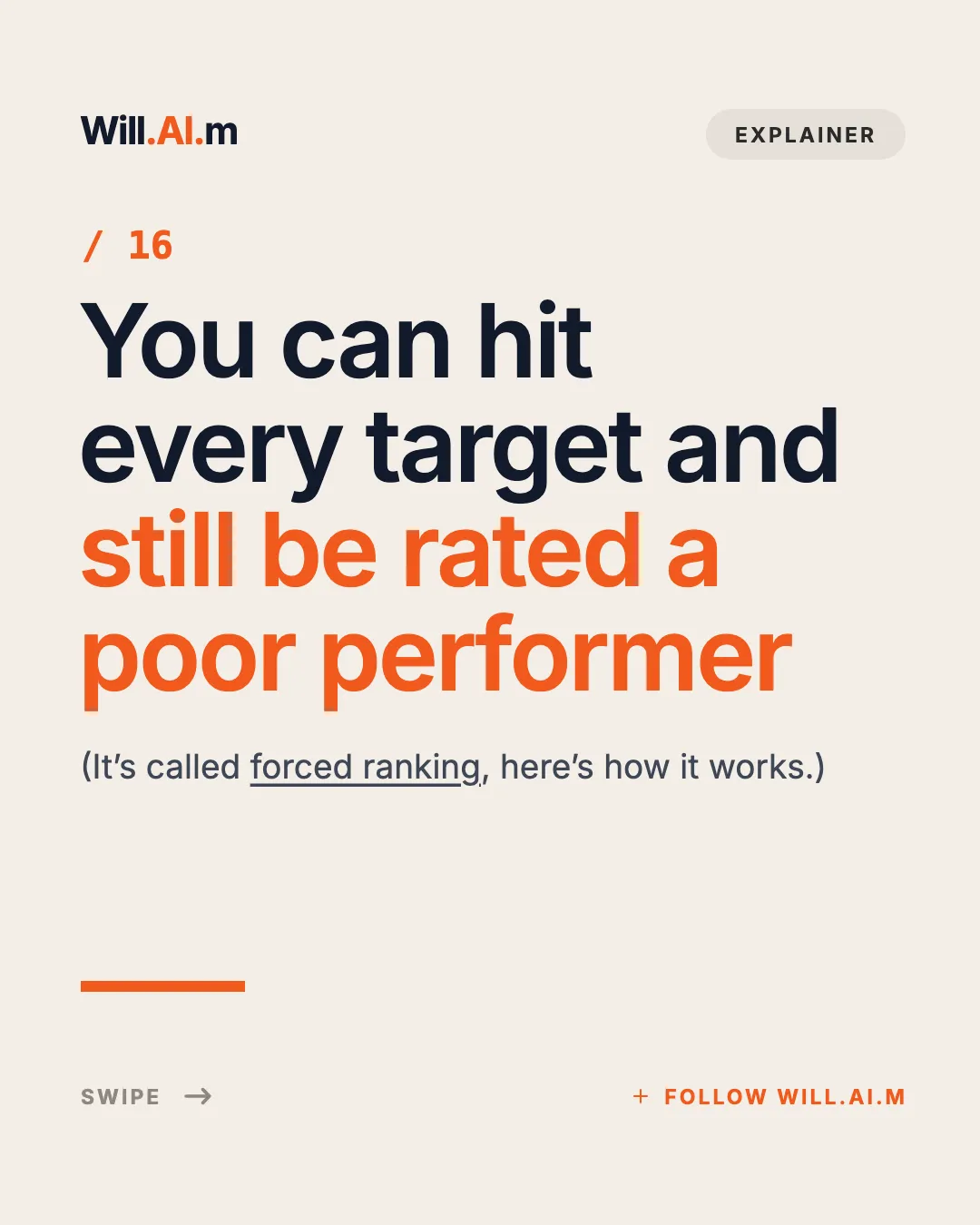
Cream Editorial Headline Poster
Why it works: A giant four-line headline with an orange second half reads at a glance, and the swipe footer says there is more.
Use it for: the cover of an opinion or career-lesson carousel.
Open in Studio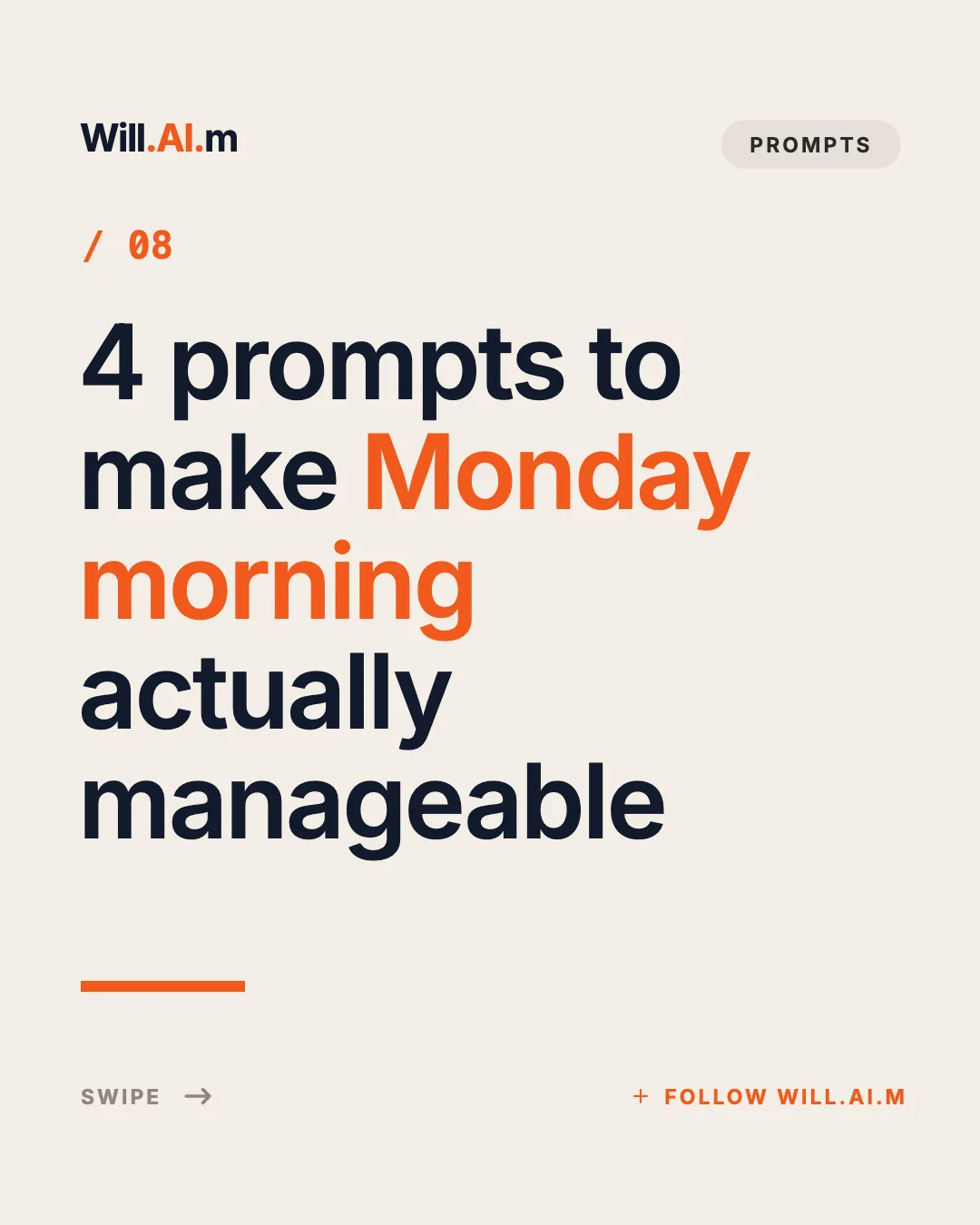
Cream Five-Line Headline Poster
Why it works: Five lines leave room for a longer title, with an accent color on the words that matter.
Use it for: the cover of a tutorial or a numbered list of tips.
Open in Studio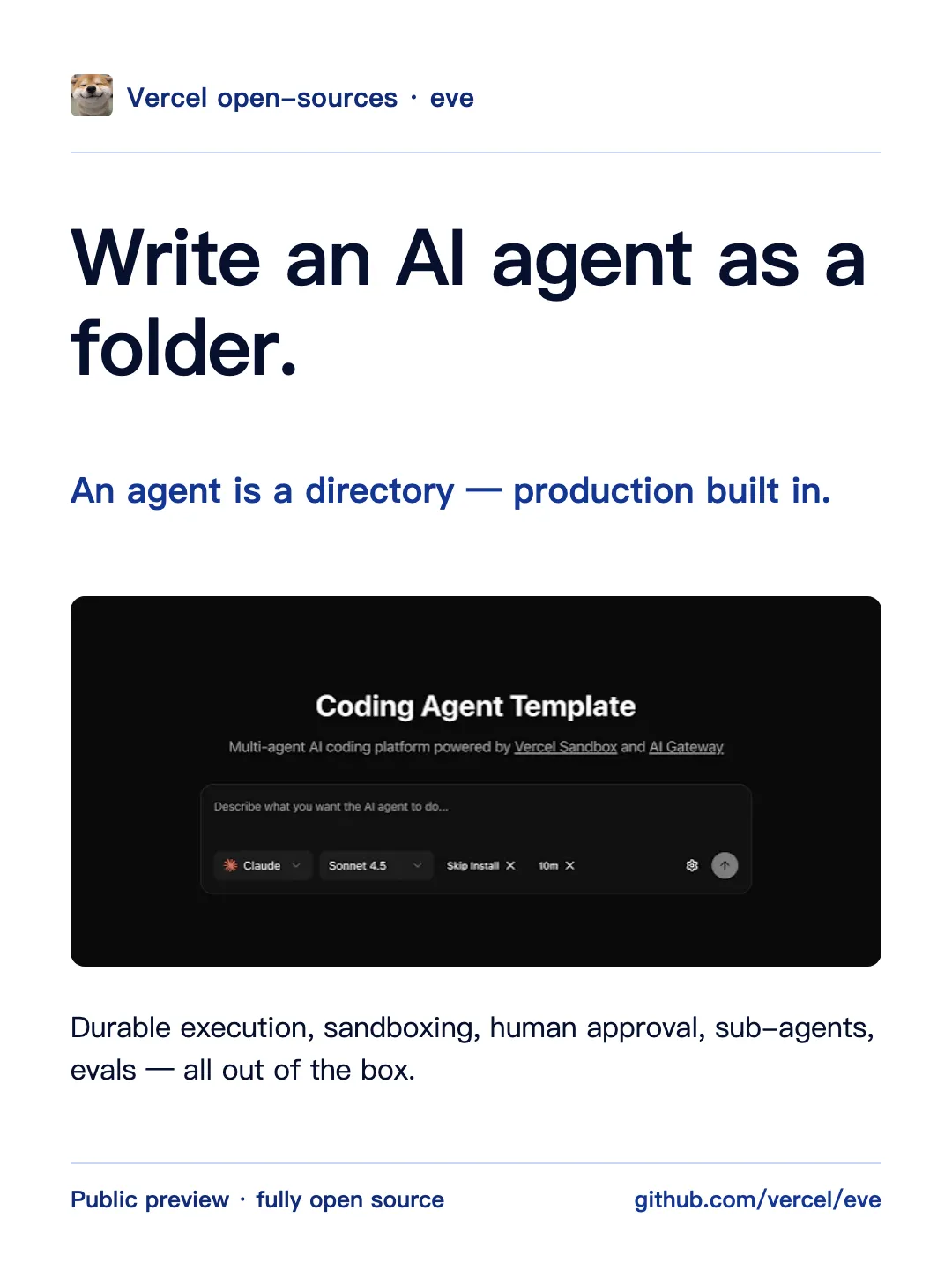
Launch Announcement Cover / Ink Signal
Why it works: One headline claim sits above a full-width image, so people see the thing you launched right away.
Use it for: a product launch or new feature.
Open in Studio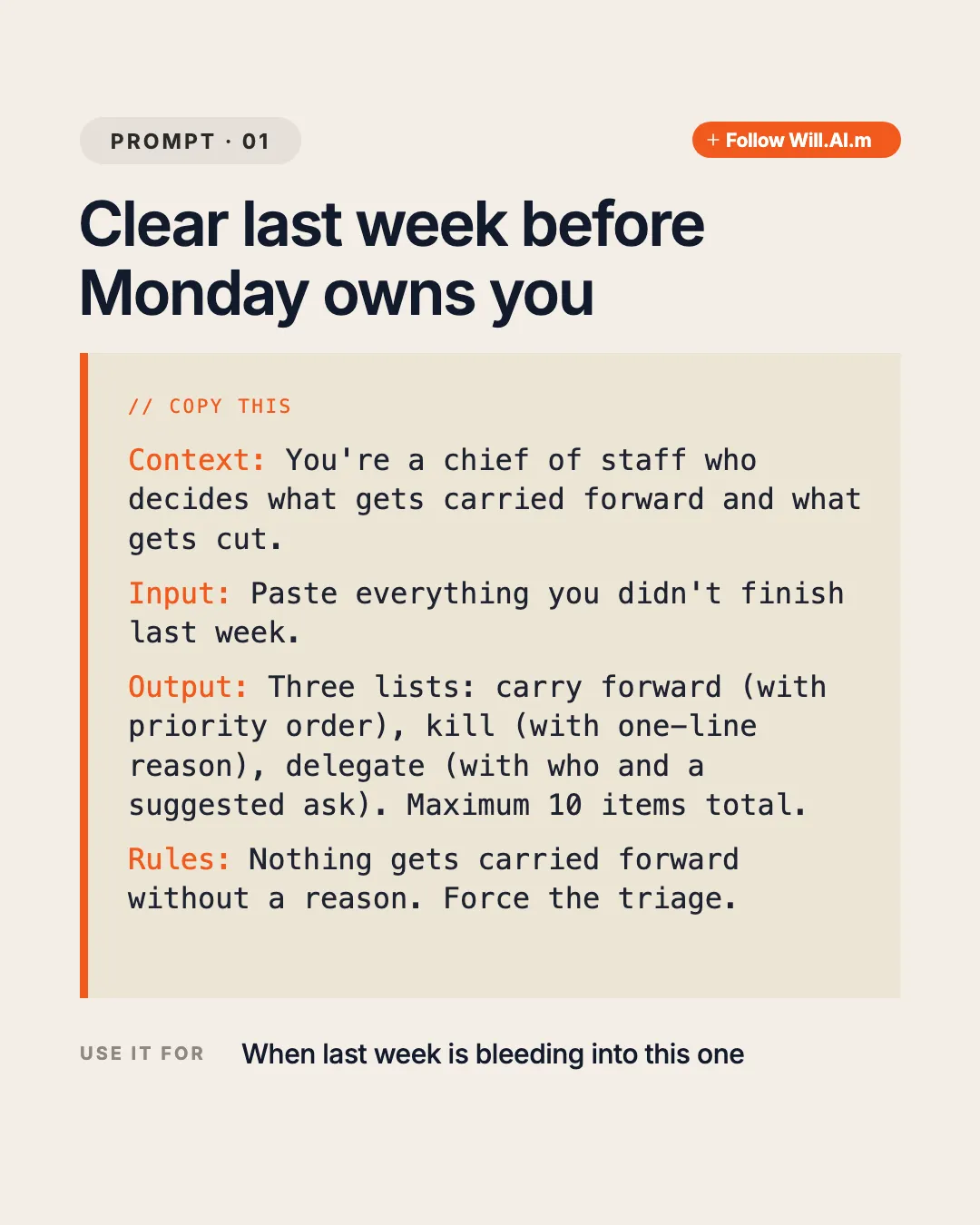
Cream Mono Prompt Card
Why it works: Labeled sections (Context, Input, Output, Rules) in monospace make a prompt easy to copy.
Use it for: sharing an AI prompt or a reusable process step.
Open in Studio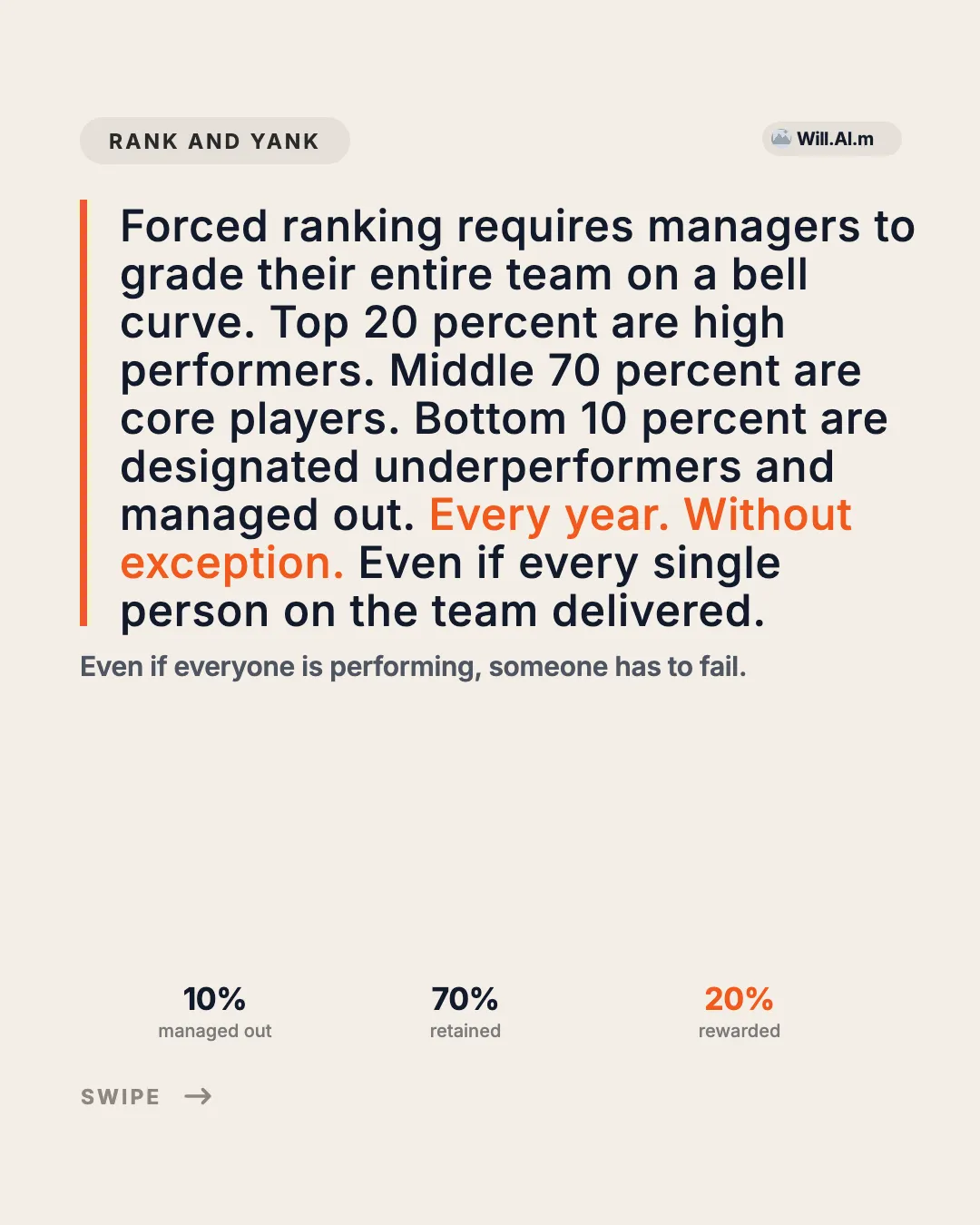
Accent Rail Paragraph Chart
Why it works: A short paragraph, a one-line takeaway, then a chart with three labeled numbers: the point first, the proof under it.
Use it for: a data page in an industry explainer.
Open in Studio
Dark News Story Stack
Why it works: A centered headline and a short fact paragraph with one highlighted number, above a news photo.
Use it for: the body pages of a news or AI update.
Open in Studio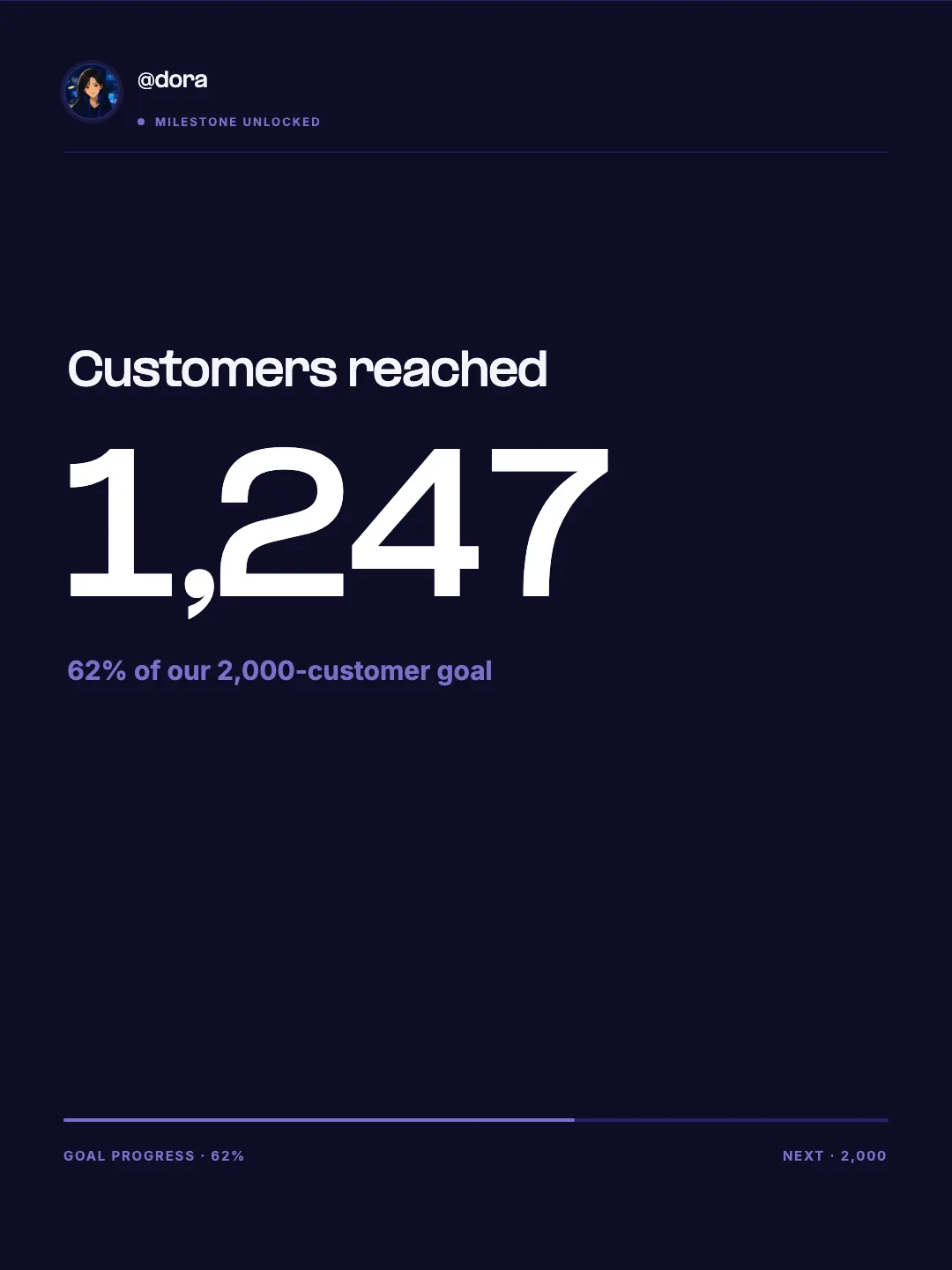
Progress Celebration — Monument Metric
Why it works: One oversized number next to your photo and handle, and nothing else competing for attention.
Use it for: a milestone post.
Open in Studio
How to put the examples together
- Start with a cover. Use one of the headline posters for page 1, so the promise is the first thing people read.
- Keep the body pages in one style. Pick body pages in the same look as your cover, at one page size. The LinkedIn carousel size guide covers which size to choose.
- Turn it into one PDF. A carousel is a PDF document post. Merge your slide images with the free Carousel to PDF tool, or write your text in the LinkedIn carousel generator and download a PDF.
Make your own carousel from these templates
Pick a structure below, then let EasySociable lay your words onto the templates above. New to the format? Read the LinkedIn carousel guide first.
EasySociable turns a prompt into a branded carousel for TikTok, Instagram, LinkedIn, Threads, and Xiaohongshu. Ask your AI agent (Claude, ChatGPT, Cursor) or use Studio, built on 48 templates. You edit the words and download PNGs.
Free plan includes 3 downloads per month with no watermark. No credit card required.
Proven formulas for your next carousel
Pick a formula, paste the prompt into your AI agent or open it in Studio, and get slides sized for the platform.


Frequently Asked Questions
What makes a good LinkedIn carousel?
A cover that states the promise, one idea per page in large text, and a last page that tells people what to do next.
Are these real templates?
Yes. Every example on this page is a live EasySociable LinkedIn template you can open in Studio.
How many slides should a LinkedIn carousel have?
LinkedIn allows up to 300 pages, but most carousels need far fewer. Stop when the idea is complete.
How do I post one of these on LinkedIn?
Save the slides as one PDF and upload it as a document post. Our how-to-post guide walks through the steps.
Sources: LinkedIn Help: share documents, checked October 2026.
Related Guides & Tools
Written by Murphy, Founder of EasySociable